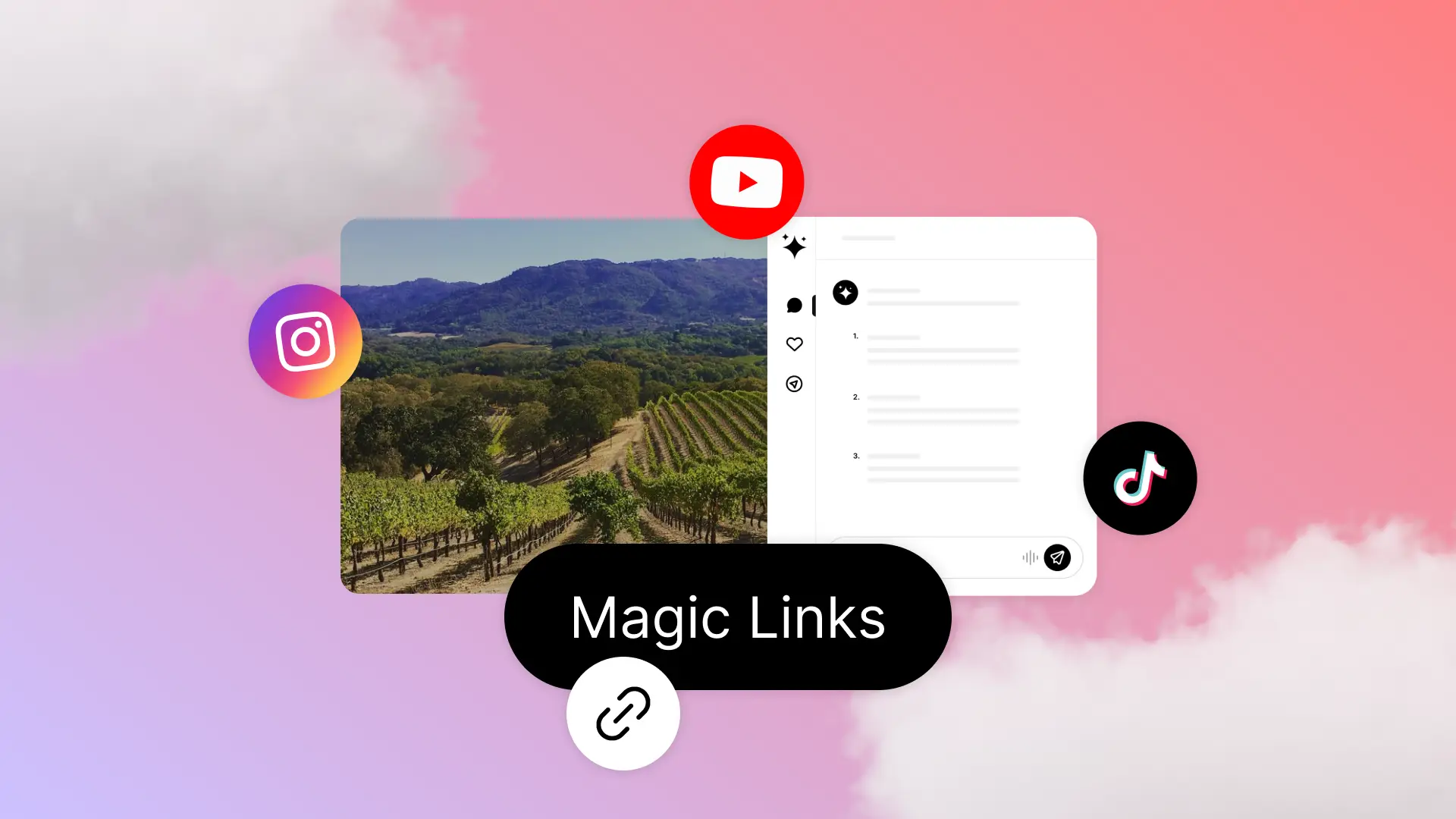
Magic Links help you turn content about your destination into a starting point for trip planning on your DMO website. Create a link from a social video, blog post or other piece of content, then share it wherever you connect with potential visitors. When someone clicks, they’re taken to your website, where Mindtrip opens with the original content ready to explore.
For example, imagine an influencer posts a TikTok about the best brunch spots in your destination. You can create a Magic Link from that video and share it in a newsletter or social post. A traveler who clicks the link lands on your website and can explore the featured places, ask for related recommendations and start planning a visit.
Before you begin
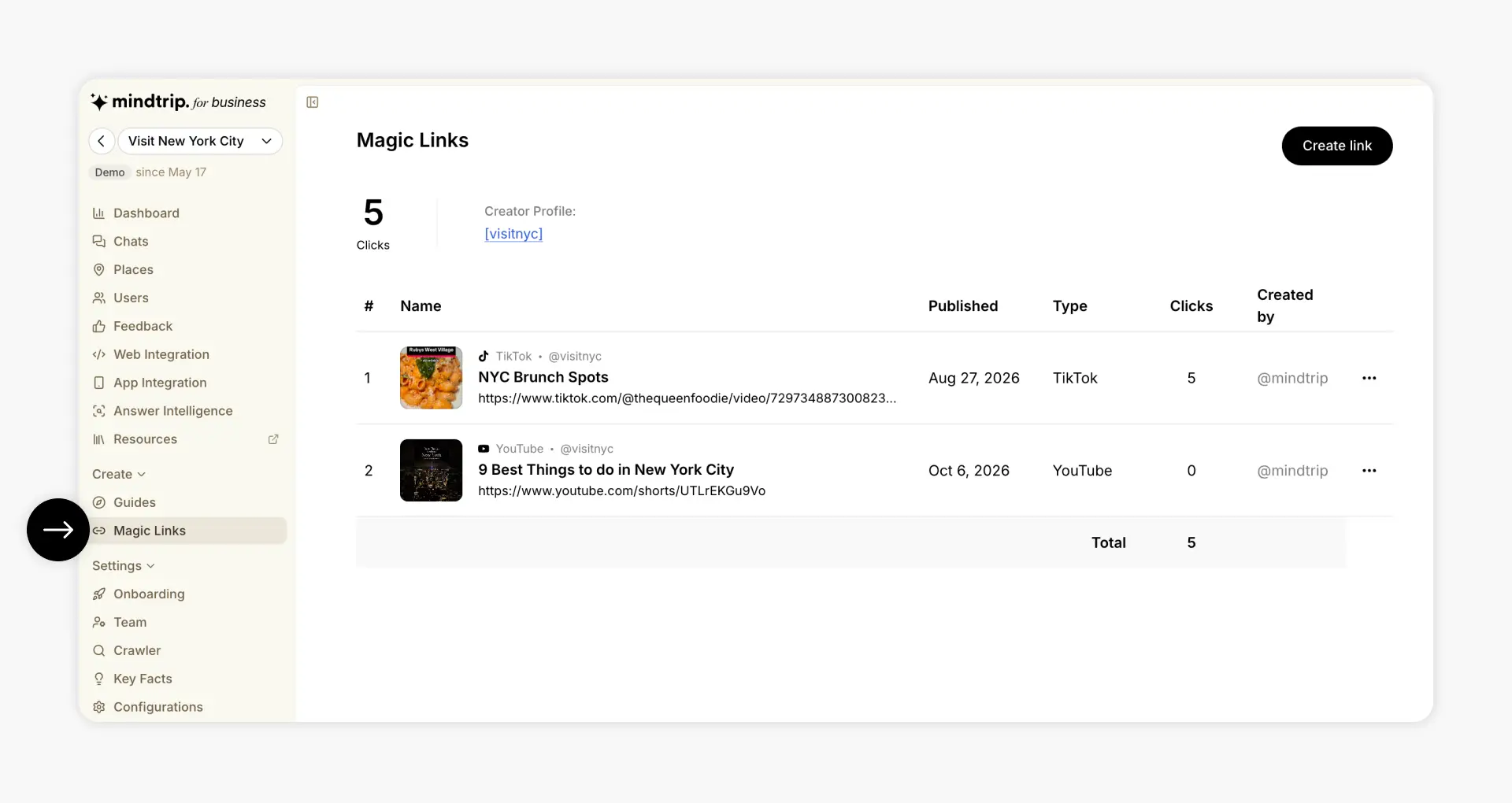
Magic Links are available under Create in your Mindtrip Organization Admin. You’ll need a creator username for your organization, such as visitnyc. If you don’t have one, contact your Mindtrip Success Manager to have one set up.
Once you’re logged in, go to Create → Magic Links and follow the steps below.
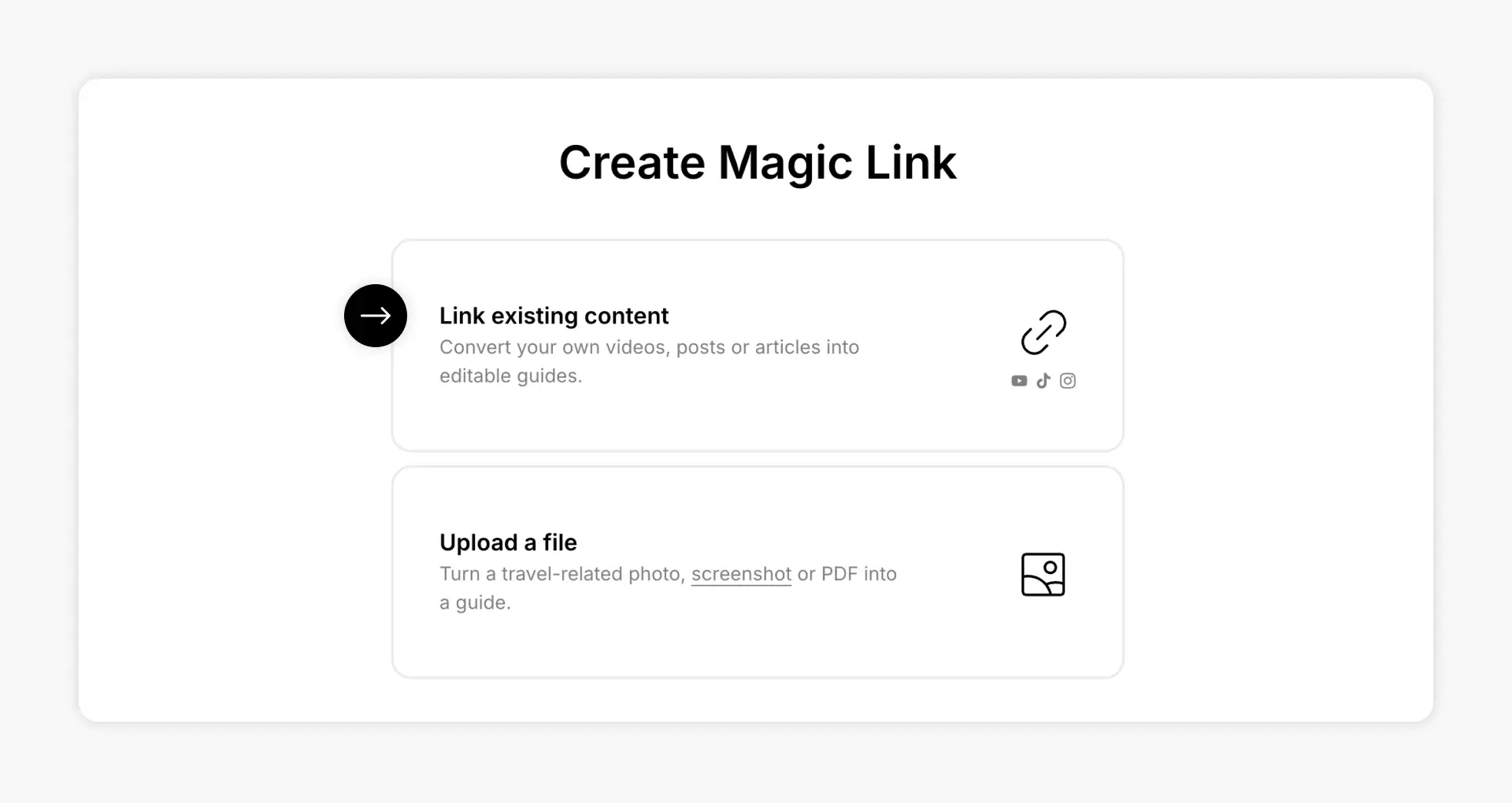
Choose how to create your Magic Link
You have two options:
- Link Existing Content. This is the most common way Mindtrip for Business partners create Magic Links. It lets you build on content you already have or share, such as videos, social posts and blog articles.
- Upload a file. Create a Magic Link from a photo, screenshot or PDF.
For this walkthrough, we’ll choose Link Existing Content and use a TikTok video about popular brunch spots in NYC.
Create your Magic Link
1. Select Link Existing Content, then select Next.
2. Paste the URL of the content you want to use.
3. Give your Magic Link a name, or check that the name pulled in from the URL is accurate.
4. Choose the format that best fits the content:
- List displays the places mentioned in the content as a list.
- Itinerary organizes them under day-by-day headings. Choose this for content structured around a multi-day visit, such as seven days in your destination.
5. For the brunch video, choose List and select Next.
Mindtrip will process the content and add the Magic Link to your list, typically in about 30 seconds.
Copy and test your Magic Link
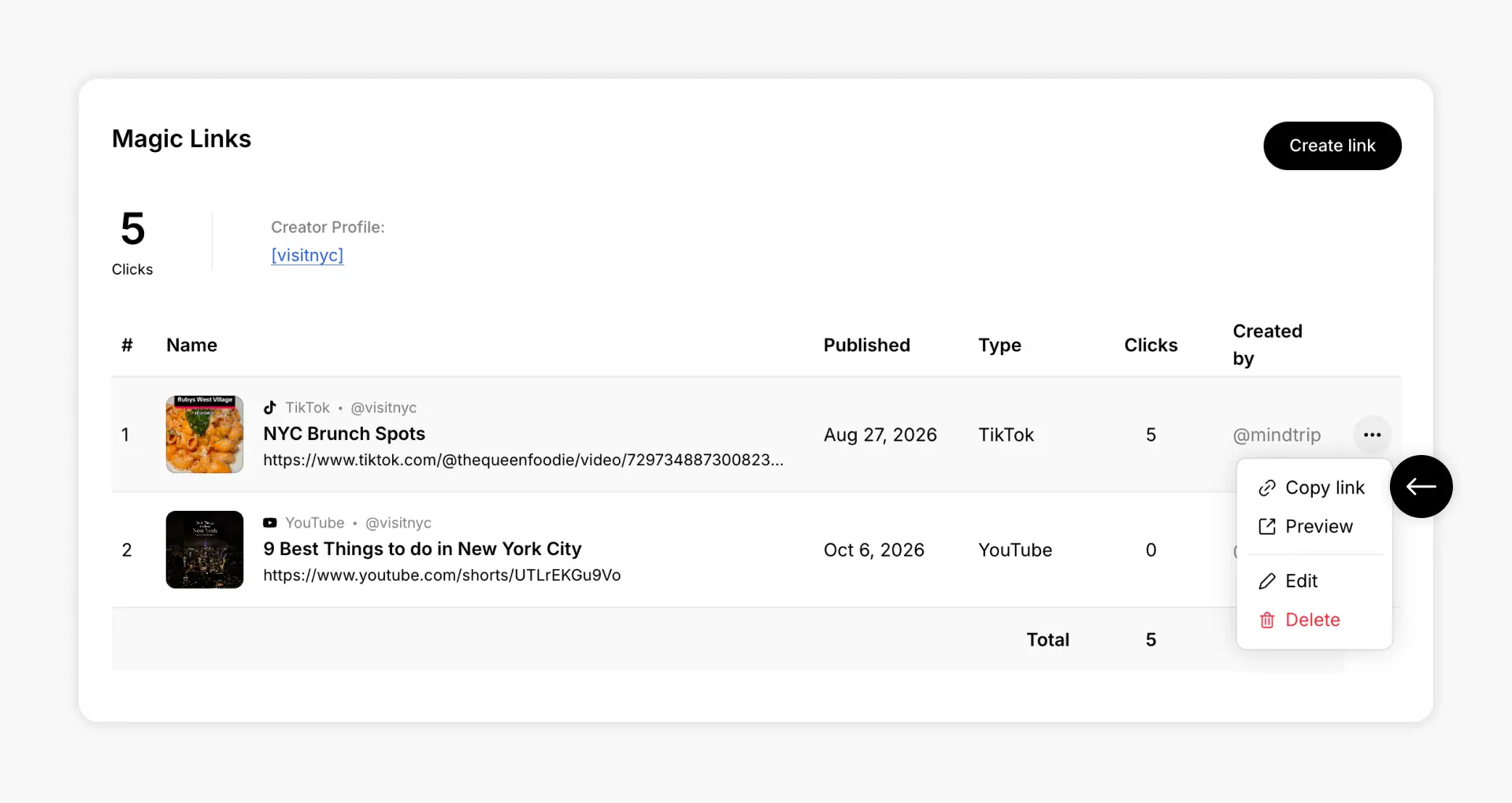
Find the Magic Link in your list. Select the three-dot menu on the right, then choose Copy link to copy its unique URL.
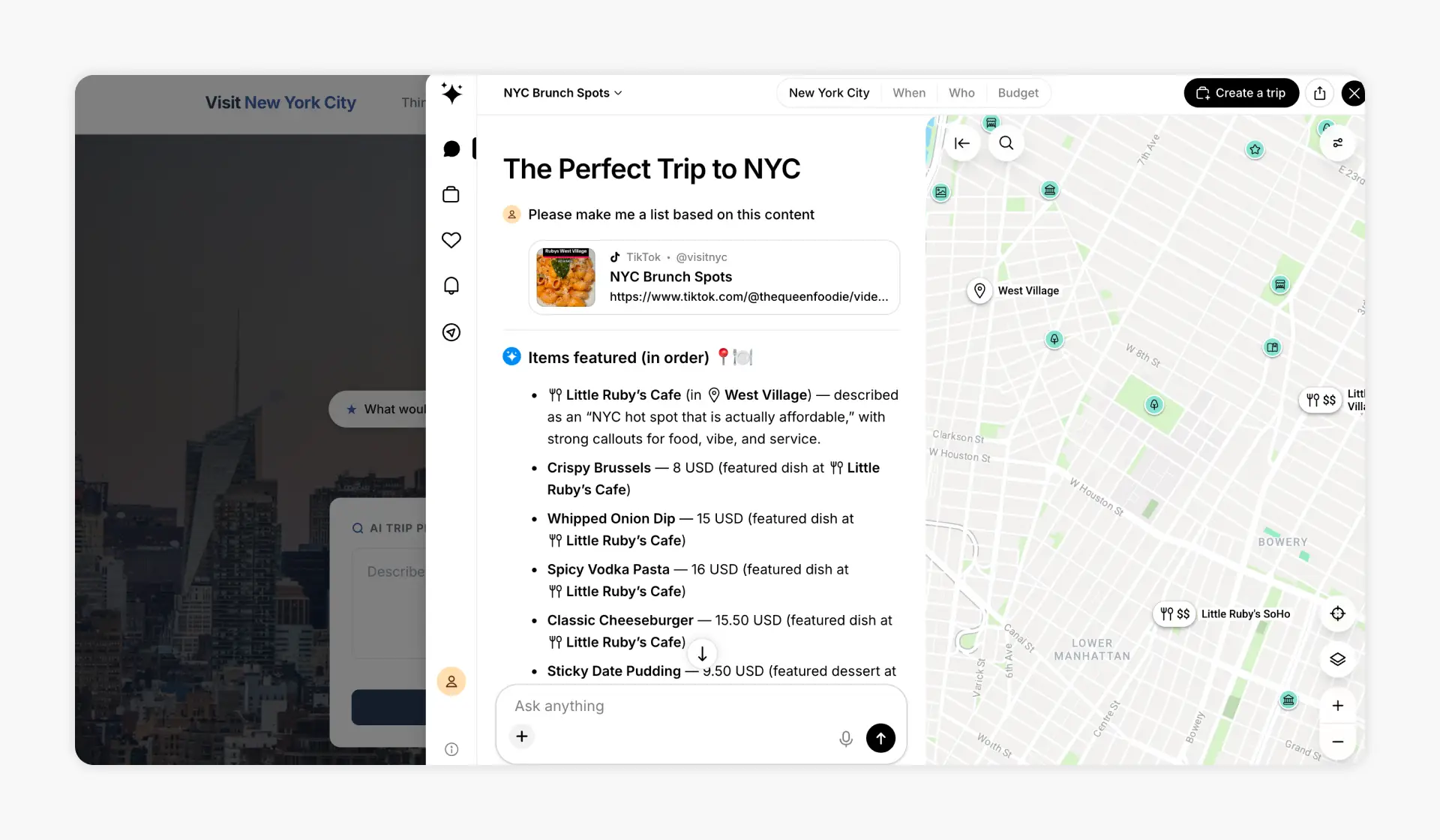
If your destination’s Mindtrip experience is live, open the URL to see the visitor experience. The link takes visitors to your destination’s website with the Mindtrip chat panel open, ready to help them explore using the content you linked.
Note: This experience is NOT available to accounts that are still pending launch.
Put your content to work
Once you’ve created a Magic Link, you can use it wherever your destination shares content and invites travelers to take the next step. You might pair it with a creator video you repost on social media, include it in a newsletter about things to do, or add it to the description of a video on your destination’s YouTube channel.
In each case, the content that sparked a traveler’s interest can lead them back to your website, where they can ask questions, add the places mentioned to a trip plan and discover more of your destination.
Questions about creating or using Magic Links?
Contact your Customer Success Manager.