Turn your destination expertise into guides visitors can explore, customize and use to plan their trip. Add your recommendations, upload your photos and videos, and showcase what makes your destination unique.
0:00 / 4:49
1) Open Your Dashboard
Login to mindtrip.ai to access your Organization Dashboard. From there, navigate to the Create tab where you’ll find the tools used to create, edit and publish guides.
Click “Create a Guide.”
Before you begin, make sure a Creator account is linked to your profile. If you’re not sure, reach out to your Mindtrip Success Manager and they’ll help you get set up.
2) Choose How to Get Started
There are three flexible ways to create a guide:
Start from scratch
Choose a location, add your recommendations and build your guide from the ground up.
Start with a link
Have a travel blog, article or social post with your recommendations? Drop in the link and we’ll pull in the details for you.
Start with a file
Upload a travel photo or a PDF of an existing guide, and we’ll turn it into something you can edit and customize.
3) Create & Edit Your Guide
Once you choose how you want to get started, you'll land in a guide template, where you can begin editing.
You can customize the following sections:
Guide title
Click directly on the page and type your title. We recommend keeping it clear and compelling.
Cover images
Click "Edit Cover" in the top-right of the hero image. You can feature a single image or create a carousel. If you choose a carousel, bulk upload your images, and drag and drop to arrange them.
You can also pull images from our database.
Make sure you have the rights to any image you upload.
Overview and place descriptions
You can write your own descriptions or use our AI tool to generate a starting point, then refine it to match your brand voice.
Guide order
Use the outline to rearrange places. Click the three dots next to any place and drag and drop it wherever it belongs.
Place images and rights
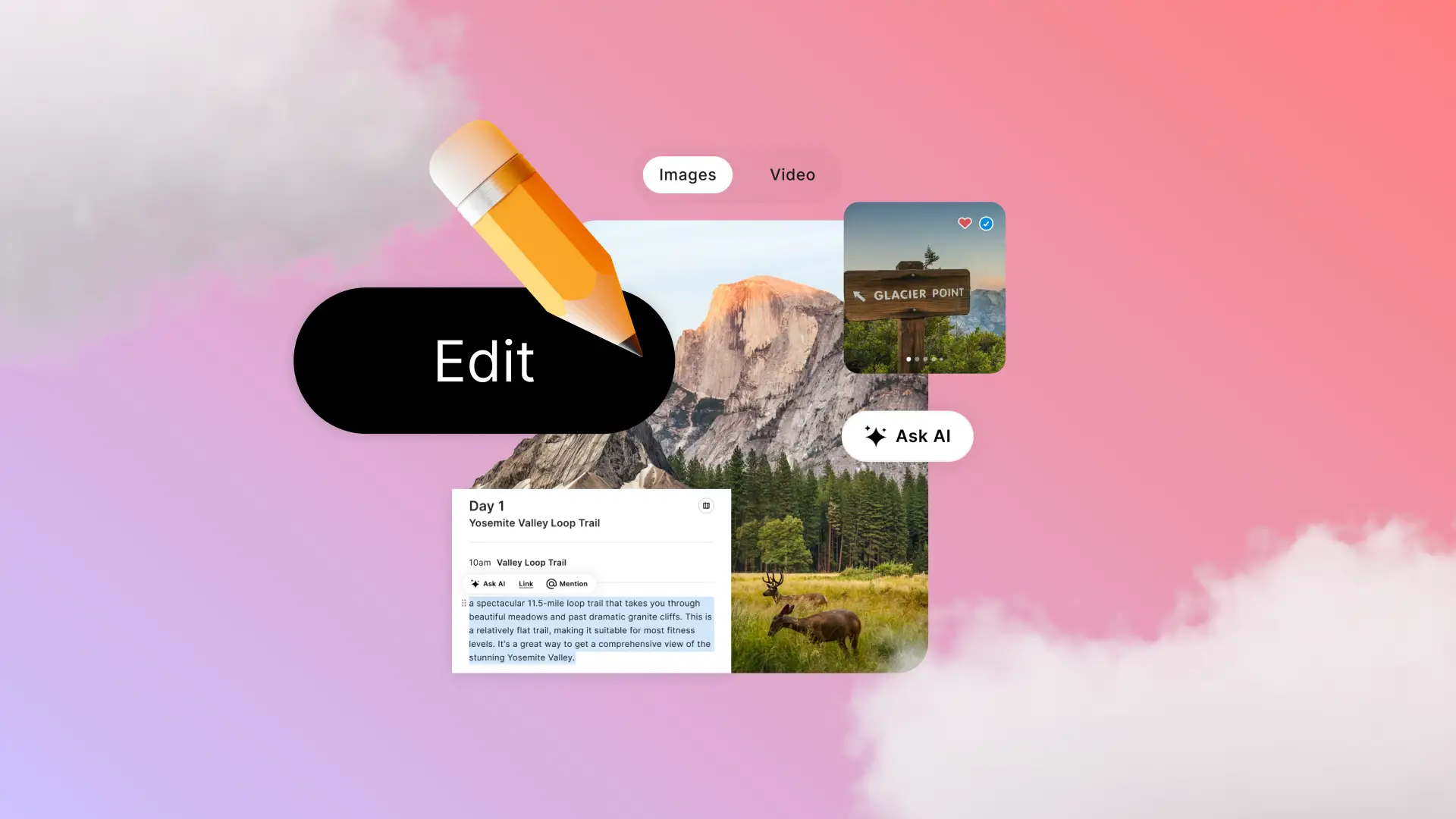
Click "Edit" in the top-right corner of each place image to add your own photos or rearrange existing images.
Remember that you should have licensing rights to any photo you upload.
Image Credit
Give credit where it’s due. Select the image, then add the URL and the name of the photographer or source.
4) Publish Your Guide
When your guide is ready, click “Publish” in the top-right corner. You’ll return to your dashboard, where you can view all published guides and drafts in progress.
Need to make updates? Head back to the dashboard from the Create page, select your guide and continue editing.
Once published, your guide remains dynamic, so any updates you make will automatically appear.